
We have just finished migrating a manufacturing firm from number-matching push MFA to Entra ID passkeys. The rise of Adversary in the Middle (AiTM) attacks seen in the wild made passkey migration a high priority security project. The organisation was able to close (or reduce) several key risks. This article covers what we did, what worked, and what got in the way.
Just getting users to register a passkey is not enough - Microsoft can still fall back to push MFA. To get the full benefit, identities need to be configured so that passkeys are required (not just available).
A2g Cyber built the Passkey Helper (passkeyhelper.com) as part of this engagement. It’s a user-facing application that enables self-service migration and enforcement of passkeys on Entra. It is free for the next few months, so why not give it a try?
Introduction - what are passkeys and why do they matter?
Passkeys revolutionise signing into apps because they replace passwords and traditional MFA.
A passkey is not a thing you need to remember, but a cryptographic credential bound to a website or service. You unlock passkeys with biometrics or a PIN and they are stored on your laptop, phone or in a security key. The user experience is quicker and easier than typing in a password and doing MFA. Our users often commented on how much easier a passkey is compared to password and MFA.
“Is that it?” was frequent feedback when using a passkey for the first time.
If you want more of an overview, check out the excellent NCSC articles such as “Passkeys: they’re not perfect but they’re getting better”.
What’s the security benefit of passkeys?
There has been an increase in Entra-based Adversary in the Middle (AiTM) attacks in companies I directly support (and I’m confident we’ll continue to see a rise). In an AiTM attack, an attacker proxies between a victim (who clicked a link) and Microsoft. That lets the attacker relay MFA prompts and, once the victim is signed in, steal the session token. In contrast, passkeys won’t authenticate the attacker-controlled site, which prevents the user from handing over the credential (now a passkey, not a password).
Other ways to prevent AiTM include requiring certificate-based authentication or always requiring a company device (although that does not technically protect the user’s identity).
Whilst passkeys are excellent, they’re not a magic bullet! They do not mitigate attacks where the user has correctly authenticated to Microsoft. This means you should also consider mitigations for Consentfix, device code attacks and remember that passkeys do not protect the session tokens. If the device has malware running, the post-authentication tokens can be stolen.
Company IT setup
- Windows-issued devices, majority Windows 11, some Windows 10.
- Windows Hello for Business (WHFB) deployed to 80% of devices. Some laptops, some desktops.
- Shared Windows desktops, where multiple users could sign in. WHFB was disabled in these scenarios.
- Small number of iOS issued mobile devices, mainly BYOD.
Target architecture
We wanted all users to require passkeys wherever possible. This is enforced through a set of conditional access policies. You’d require a grant control for either “Phishing resistant MFA” or create a custom authentication strength.
You may find (like we did) that sometimes usability and technical compatibility means conditional access would need to exclude specific apps, devices or locations. In these cases ensure a regular MFA CA policy still applies. We took the view that it’s better to have some exclusions than getting stuck and not being able to roll out passkeys at all.
Don’t let perfect be the enemy of good! Passkeys are a big step forward in security, even if you can’t get 100% coverage.
Our client wanted Authenticator passkeys for use on the local mobile device (also a backup for cross-device QR code auth). For primary desktops, they relied upon Windows Hello for Business.
Challenge 1: The user needs access to a passkey on all their devices
The device could be their laptop, desktop or phone. These are fairly easy to ensure a user has a passkey they can use. The problems start when they need to sign into a Teams desk phone, a remote virtual server or an old device.
What do we mean by “access to a passkey”? There are two types of passkeys - device-bound or synced.
Device-bound passkey examples include:
- Windows Hello for Business and macOS Platform SSO (preferred for our rollout). Microsoft stores these in Graph as “Platform credentials”, but they are phishing-resistant credentials. With these methods, sign-in can only happen on the local device where the passkey is installed.
- FIDO2 security keys, e.g. Yubikeys, Feitian, Google Titan. The passkey is bound to these USB/NFC keys and the private keys never leave. They can be plugged in or NFC scanned on desktops, laptops and mobile operating systems. They’re a good backup mechanism as they’ve got good compatibility, but do involve overheads of management (issuing and taking back).
- Microsoft Authenticator passkey (preferred for our rollout). This is a passkey held inside of the Microsoft Authenticator app for iOS or Android. The key is bound to the device. The user can sign into the local mobile device or perform “cross-device authentication” with this type of passkey. Cross-device authentication works by displaying a QR code on another device (e.g. Windows 11/macOS), a Bluetooth connection is made and the user accepts the request on their mobile device. We found the Authenticator app worked well on iOS (as long as supported) but had issues on Android. We found Windows 10 devices couldn’t support the cross-device authentication flow with a QR code when signing into desktop apps (Outlook, Teams etc). You could get QR code sign in via the browser however.
Syncable passkey examples include Apple iCloud, Google Passwords, 1Password, Keeper and so on. Entra ID allows you to specify which synced providers to allow. These bring convenience and compatibility (Android support for much earlier versions than Microsoft Authenticator passkeys) but there is increased risk because the keys are held in the cloud and in OS memory of devices rather than secure enclaves.
Device-bound or synced. Which do you choose? Ultimately, the risk has to be decided and weighed up. You’re comparing:
- Not having a passkey where a device-bound option isn’t feasible (leaving you vulnerable to a phishing attack and AiTM URL risk).
- Allowing syncable passkeys and accepting the risk of a device OS compromise (to steal passkeys from devices). In addition, the password manager identity could be compromised to release passkeys.
Luckily, you can limit the syncable passkey providers if you want further controls. You can even limit passkey types to different groups (maybe admins need device-bound and users don’t?).
In summary: plan out and test how you want your users to sign in with passkeys on all their devices.
Starting March 2026, Microsoft Entra ID will auto-enable passkey profiles.
Challenge 2: Enrolling isn’t enough, the user needs to be enforced
Just nudging the user to enrol a passkey is not enough to be fully protected by them. Yes, the default method of sign-in will change once the user registers, which actively tries to protect sign-ins. An attacker can downgrade the attempt via the “sign in another way” option, however. We found that a conditional access enforcement of ‘phishing resistant MFA’ is require to fully protect the identity.
The question remains: how do you enforce all your identities to require a passkey without disrupting users?
Data-driven admin enforcement approach
You could do data analysis of who has a passkey and enforce off that list but you hit a few issues:
- We saw users who had passkeys on Entra, but actually they had been either deleted from the phone (and not reflected in Entra) or devices had been lost/changed.
- Some Windows 10 devices didn’t support the QR code scanning (for desktop app sign in) and needed WHFB set up.
- Users sign in from many devices. How do you know all their devices are compatible?
- We saw examples where a passkey was set up but never used. Several users had set up WHFB but never signed in with it so had long forgotten the PIN. They would use their Windows password. These users would be disrupted if enforced.
A disadvantage of this approach is that when you enforce passkeys on an identity there is a chance of causing impact to the user. We found that at a minimum the user will be asked to sign in (sometimes for the first time) with their passkey after CA enforcement.
The alternative enforcement approach - Self-service with data-driven guidance
We developed the Passkey Helper to provide a self-service way of enforcing passkeys. We architected Conditional Access to enforce passkeys based upon group membership (for the duration of the migration). Users don’t have permission to add themselves to the group, and the migration tool would add users as part of the migration journey.
By guiding the user to the tool, you can also combine with data analysis. The tool will query the user’s account and logs to:
- Dynamically guide them through the process. For example, are they moving from SMS or number matching?
- Find devices in sign in logs that they may not have passkeys on yet.
- Unused passkeys on their current device (e.g. WHFB set up, but user forgot PIN)
- Allow them to test a sign-in on any device.
- Check they’re all set up before they finish and enforce.
The advantage of this approach is that a user performs migration at a time that suits them, and any issues slowly trickle through to the support team. In the unlikely event that users need chasing (lol) the tool has automated chasing features to constructively encourage action.
Challenge 3 - Comms are critical
Passkeys are different, yet also similar, to passwords and regular MFA that our user base is familiar with. There are lots of nuances and use cases to consider when planning and architecting a migration.
Organisationally, there is a fine line between drawing too much attention to a passkey project and not providing enough emphasis for prioritisation - and this applies to both stakeholders (i.e. “should the company make the change”) and users (i.e. “am I going to break my account”).
Some experiences:
- Two or three users only noticed at the end of the migration that a passkey is not a password - they did not need to remember anything new (something they were preparing to do).
- Several users were surprised that a PIN is more secure than a password. The difference is the PIN unlocks a credential that can’t leave the device.
- The term “passkeys” is recognised as just a mobile OS thing, and users/stakeholders don’t recognise that desktop OSs are also in scope with WHFB or macOS PSSO.
- We realised fairly early on that user guides need lots of nudges and changing. Instead, we modified our migration helper app with dynamically chosen screenshots which eventually led to a fully data-driven experience.
Comms need to be very clear and have a call to action. Even with multiple iterations, we found some users who didn’t start the process and preferred to talk to someone.
Our emails were fairly long and detailed: what are passkeys, why are we doing this, what do you need to do, what if my device is not compatible, where do I go for help and FAQs. In hindsight, we should have kept the emails short and relied upon guidance in the passkey app to cover these points interactively.
Initial invite wide emails were sent each department and tailored comms (based off automations in our app) were sent every 3-4 days to chase users. We found the more tailored the emails were, the better the response. Each round of emails prompted about 15-20% completion within the first few hours and redued to about 5-7% 3 days later.
We had to make it clear it’s the users’ responsibility to migrate (and not IT/security) in our comms. Our most successful comms campaign was towards the end of the process, where we changed our tone to say users would lose access if they did not complete the steps. I asked a user who ignored the previous 10 or so emails (wish I was exageratting) how I could have got them to act earier. The response was ‘Tell me I’m going to lose access if I don’t do it’.
Comms emphasised that it takes 3 minutes on average to complete the process, which encouraged action. (this is a live metric covered in the passkey admin panel dashboard)
Challenge 4 - Not all mobile devices are compatible with Authenticator passkeys
We chose to use Microsoft Authenticator passkeys, which is a device-bound method. Microsoft have recently launched a public preview of synced passkeys, which allows iCloud/Google Passwords/1Password/other passkey managers to hold passkeys and authenticate to Entra ID.
Microsoft Authenticator passkeys don’t work on all mobile operating systems. iOS 17+ is required (rules out iPhone 8 and iPhone X), and Android 14+ (but sometimes 15+). When a user has an incompatible phone your organisation needs to decide (from low to higher risk):
- Block the user until they buy a compatible phone.
- Block the user until the company provides a compatible phone.
- Purchase USB-C security keys (which we hear mixed reviews on Android compatibility).
- Allow synced passkeys (works on Google Passwords down to Android 8/9).
- Exclude mobile OS only for users with incompatible devices.
- Exclude mobile OS for all users and only roll out to desktop OS.
My client chose to block users until they bought a compatible phone, which caused some pushback directed at the security team. A strong risk governance process made delivering that message a lot easier. We had good top cover, and could explain for individual directors that their exec had agreed with the decision to block users until they obtained a compatible phone. A lot of users actually upgraded over the Christmas period (thank us later?).
Another client is considering to selectively and dynamiclaly exclude users with incompatible devices (the feature to support this decision is built into the migration app). This allows more coverage with less pushback, but causes a tracking overhead when users eventually do change phones.
Challenge 5 - Try before enforcing
We found that users benefitted from testing the passkey experience before they self-enforced. This allowed users to find out issues whilst passkeys were optional. We enabled user-driven testing by having a separate app registration that was configured in Conditional Access to always require passkeys with an “everytime” sign-in frequency. If the user manages to sign in, they’ve used a passkey.
This is freely available at https://app.passkeyhelper.com/test if you want to use as part of your migration project (you’ll need to configure a CA policy to require auth strength “phishing resistant”, sign-in frequency “everytime”, scope to all users and just the passkey validate app).
Challenge 6 - The new Microsoft interrupt wizard for passkey registrations
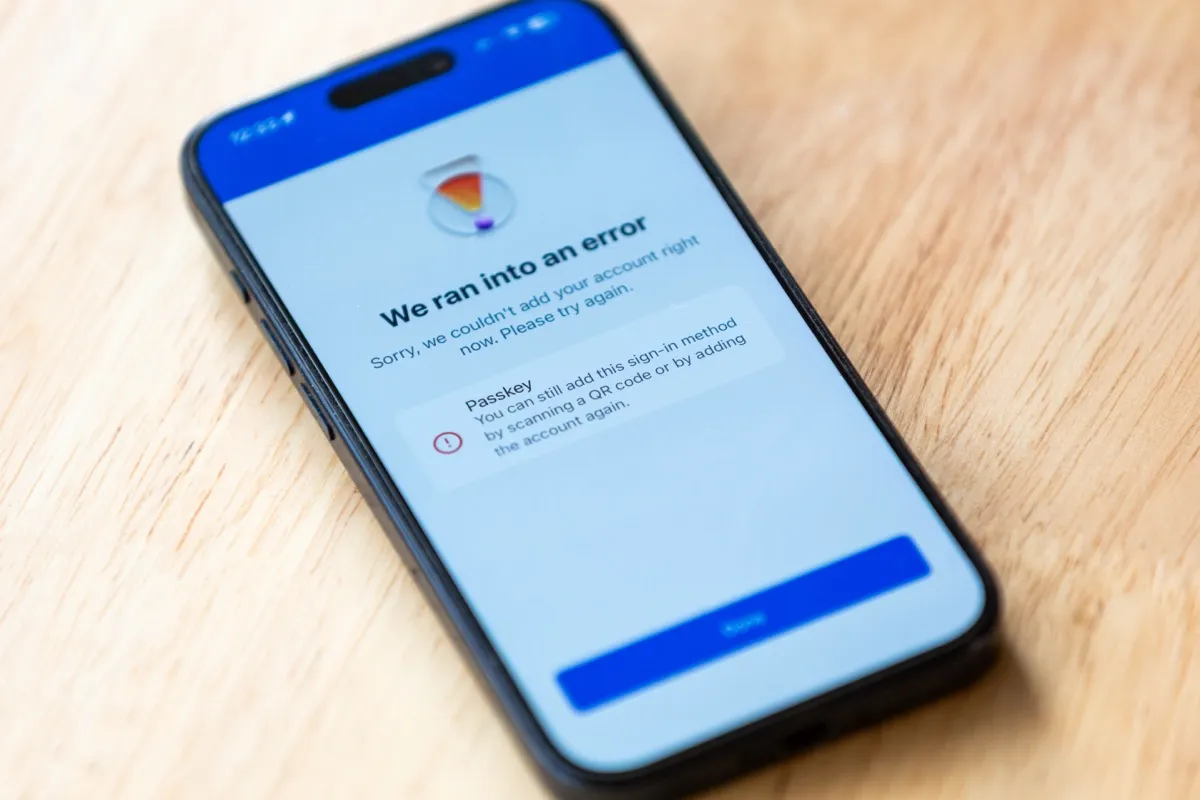
If Conditional Access requires a passkey but the user doesn’t have one registered then Microsoft will offer the user to create a passkey and guide them through a wizard. Because CA requires a passkey, this is a step that the user cannot skip. This wizard was turned on around the Ignite conference back at the tail end of 2025.
Unless you exclude two apps from your CA policy that requires a passkey, the user gets stuck in a loop of errors. Jan Baker’s awesome article explains this. Look to exclude the following app IDs for Android and iOS:
- “00000002-0000-0000-c000-000000000000” - Windows Azure Active Directory
- “ea890292-c8c8-4433-b5ea-b09d0668e1a6” - Azure Credential Configuration Endpoint Service
Ensure that a conditional access policy requires MFA for the above App ID’s to avoid a gap in coverage.
If you start the process on a desktop OS and are trying to save a passkey into Authenticator on your mobile device then the experience is sub-optimal. The experience is significantly better if started from directly inside the Authenticator app. As a taste of the issues:
- The user has to select “Create on another device” and QR code scan the passkey. If they don’t select this option, they still get the QR code but it will fail.
- If the user has browser extensions that offer to save passkeys (e.g. password managers) then they’ll have to cancel through the dialogs until presented with the QR code.
- If the mobile device has alternative password managers, then the user has to select “Authenticator” and potentially dismiss other options.
- The Android camera app may not link to Authenticator, so the user has to manually open Authenticator and complete the flow.
In short, we’re considering now restricting the interrupt wizard through a Conditional Access policy scoped to “Security Registration Info” and company devices only.
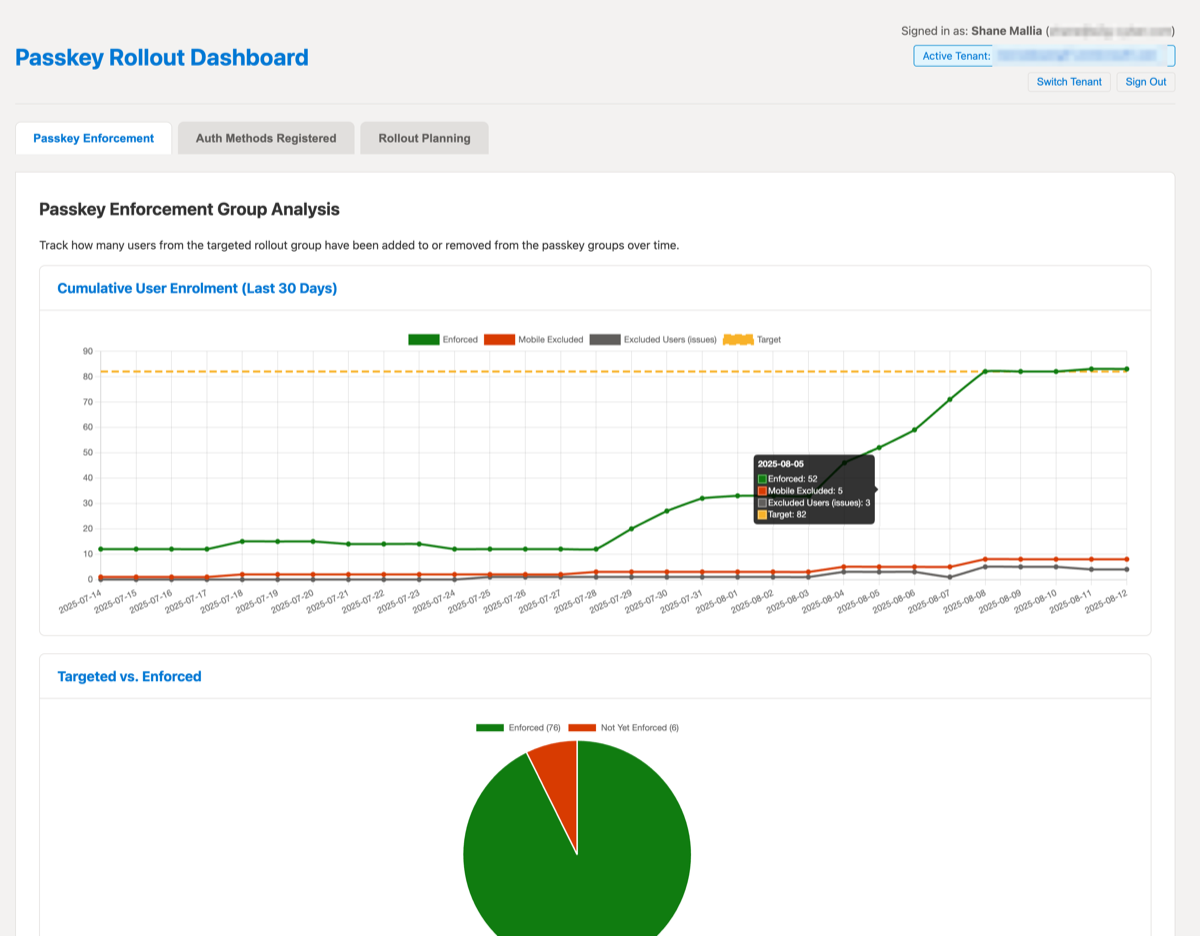
Challenge 7 - Tracking rollout progress
Once rollout starts, it’s difficult to work out who has tried and failed, who is stuck, and who simply needs a nudge. Sign-in logs help, as do audit logs.
We spent a lot of time fine tuning an admin portal for the Passkey Helper app. The portal shows a breakdown of user progress with automated comms to target users who need help. The portal also shows live metrics of average time to complete, success rates and so on.
If you’re unable to use our passkey migration tool, then I recommend automation to:
-
Track MFA registrations using the Graph API report (or if you need it faster than 24hrs, query authentication methods per user)
-
Audit logs can show failed attempts at registering a passkey. Our dashboard shows users who’ve got registration failures and no subsequent successes.
-
Have a target rollout group to reduce the time your automation needs to run for. It’s likely if you’ve got non-human service accounts then they won’t be able to support passkeys anyway so no need to track them.
-
The difference between target users and registered users is the list of people that need nudging/chasing. You can sub-divide that group into users who’ve got push MFA already, and whether they’ve already got a platform method. This will help you customise comms on what the user needs to do.
In summary
Thanks for reading this far, and I hope it’s been useful. Passkey migrations are possible with Entra ID today, especially if some strong decisions and compromises are made along the way.
Remember, don’t let perfect be the enemy of good! Any passkey is better than no passkey.
A2g Cyber can offer consultancy support and guidance for companies of various sizes, and we want to support the community with our Passkey Helper tool.
Any questions or clarification, please reach out!